If you do not want to connect a bank account, you can upload a CSV bank statement instead.
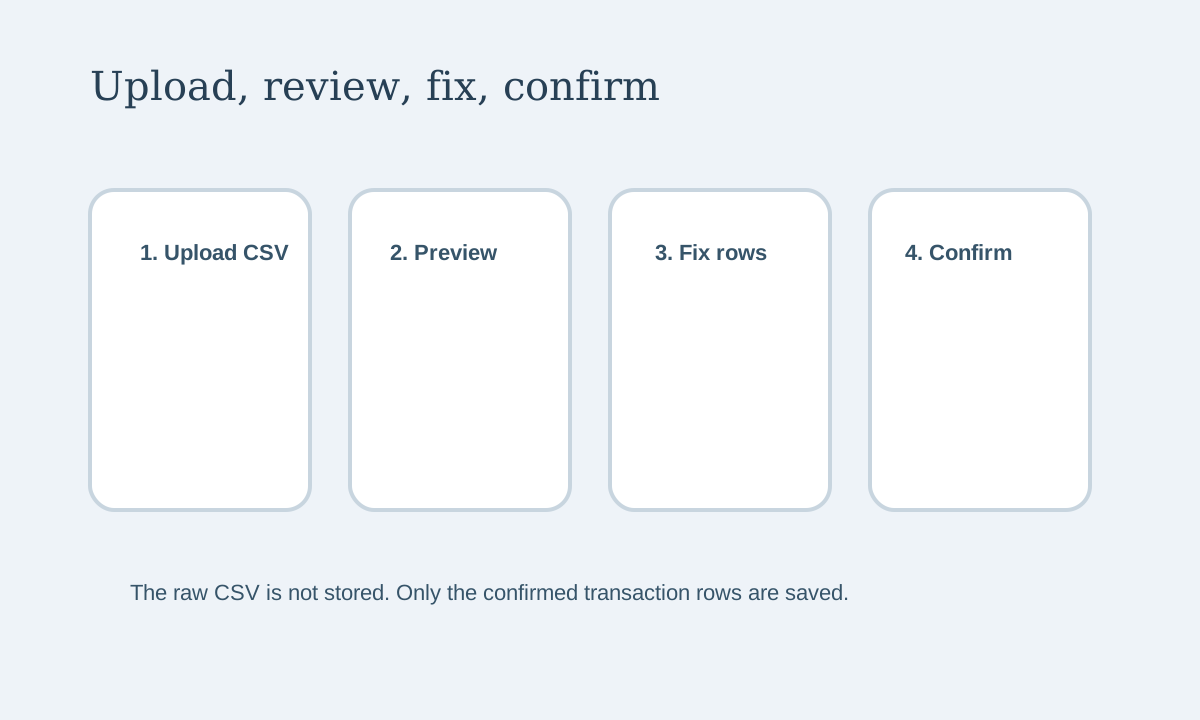
Quick view: Upload the CSV, review the preview, fix anything that looks wrong, then confirm the rows you want to save.
Step 1: Go to reporting
Open the reporting page and look for the bank statement import section.
Step 2: Choose your CSV file
Upload the CSV file from your bank or bookkeeping export.
LeaseyLog reads the file and sends it through the preview flow before saving anything.
Step 3: Review the preview
The preview shows:
- the date
- the description
- the account label if found
- the category suggestion
- the amount
- duplicate warnings
Step 4: Fix anything that looks wrong
Before you import, you can fix:
- date
- description
- account label
- amount
- category
This is important because the preview is there to help you catch mistakes before they become saved records.
Step 5: Confirm the import
When the rows look right, confirm the import.
LeaseyLog saves the normalized transactions, but it does not keep the raw CSV file.
Step 6: Clean up the imported activity
After import, go to the reporting activity panel and use filters like:
- imported only
- unclassified only
That makes final cleanup much faster.
Good simple rule
Do not rush the preview.
Take a minute, check the rows, and then confirm. That small step helps keep your reporting clean.